The Smartphone Remote turns NeuroSync Pro Audio+Light into a more practical professional room system: the session runs on the computer, while start, pause, stop, blackout, output, music, breathing guidance and key levels can be controlled from a smartphone. The remote works locally in the phone browser. No App Store or Play Store installation is required, and it is not limited to iPhone. Android phones and other modern smartphones can use it as long as they are on the same local network.
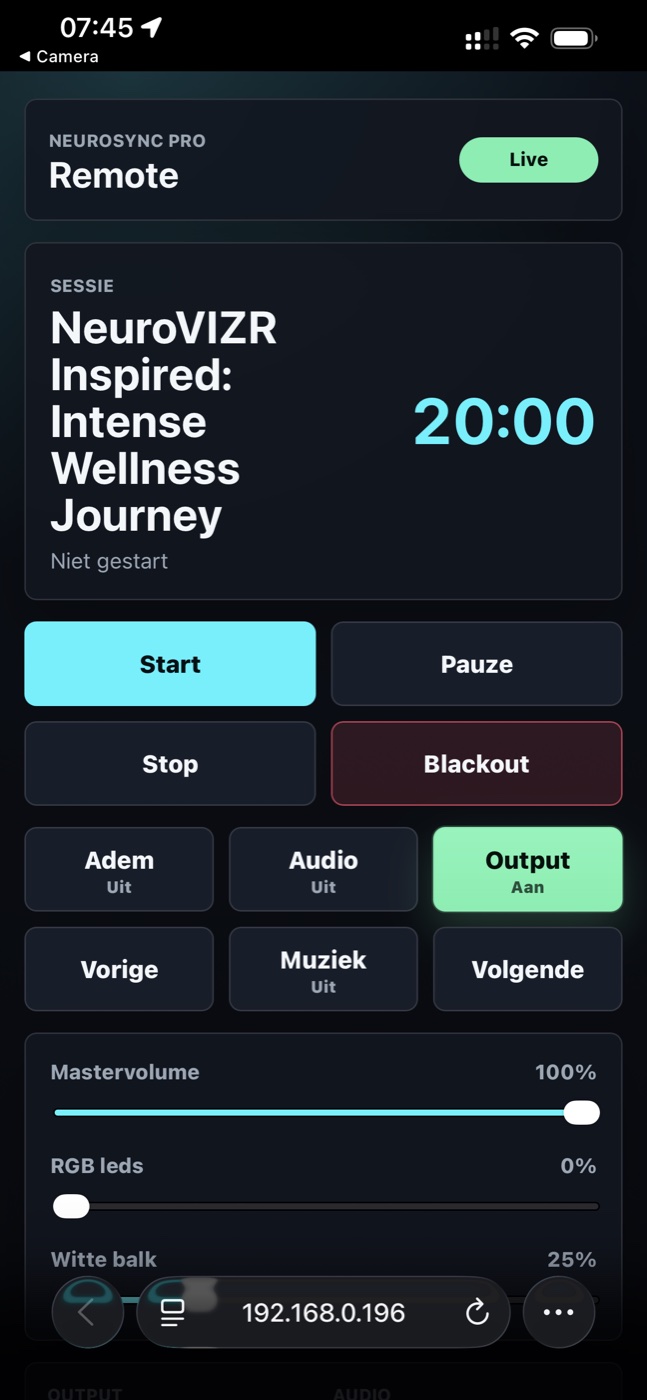
For therapy rooms, wellness studios, training spaces and demonstrations, this changes the workflow. The computer can stay near the audio and lighting setup, while the facilitator moves through the room. A session can be started next to the chair, from the side of the room or from the position where the light output is easiest to evaluate.
The Smartphone Remote is therefore not a novelty feature. It brings the most important live controls to a compact touch interface. The desktop app remains the center for design, setup and monitoring. The phone becomes the fast session controller.
What is the Smartphone Remote?
The Smartphone Remote is a local web interface served by NeuroSync Pro Audio+Light. The phone opens a local address, for example an address such as http://192.168.x.x:8765. The exact link can be opened by scanning the QR code in the settings menu. A modern browser is enough.
The remote is designed for functions that are often needed during a session: start, pause, stop, blackout, output, audio, music, breathing guidance and quick level control. Full session design and technical setup remain in the main app.
The desktop app remains the creative and technical center. The Smartphone Remote is the room controller.
Why smartphone and not only iPhone?
The function is browser-based, so it is broader than an iPhone remote. Any modern smartphone with access to the same local network can use it. That is why Smartphone Remote is the more accurate name.
| Device | Use |
|---|---|
| iPhone | Scan the QR code and open the remote in Safari or another browser. |
| Android smartphone | Scan the QR code and open the remote in Chrome, Samsung Internet, Firefox or another modern browser. |
| Tablet | Can also work when connected to the same network. |
| Laptop on the same network | Can open the remote as well, although the interface is designed for touch use. |
QR code in the settings menu
The easiest way to open the remote is through the QR code in the settings menu. NeuroSync Pro shows the local remote address. The user scans it with the smartphone and opens the remote directly. This avoids typing IP addresses and ports.
- Step 1: start NeuroSync Pro Audio+Light on the computer.
- Step 2: make sure the local remote server is active.
- Step 3: open settings and scan the QR code with the smartphone.
- Step 4: keep the browser page open during the session.
- Step 5: use the remote for start, pause, stop, blackout, output and quick level changes.
Clear live status and active functions
The remote shows whether the connection is live. It also displays the selected session and the session duration. This gives the facilitator immediate confidence that the phone is connected to the main app.
Active buttons are visually marked. If Output is on, the button clearly looks active. If music, audio or breathing guidance is active, the remote shows that state. This matters because a session can be running while output is disabled, or music can be off while entrainment audio remains active.
| Control | Purpose |
|---|---|
| Start | Starts the selected session. |
| Pause | Temporarily pauses the session. |
| Stop | Ends the session. |
| Blackout | Immediately cuts or darkens the light output. |
| Breathing | Shows and toggles breathing guidance. |
| Audio | Shows and toggles audio state. |
| Output | Shows and toggles output state. |
| Music | Shows and toggles music state. |
Master volume, RGB LEDs and white bar
The remote can show sliders for master volume, RGB LEDs and the white light bar. This makes it useful during real sessions, not only for starting and stopping. Intensity is personal. What feels comfortable for one user may be too bright or too present for another.
With the Smartphone Remote, the facilitator can reduce the white bar, adjust RGB intensity or change volume without interrupting the session flow. The most useful intensity is not the maximum intensity. It is the level that supports the experience comfortably.
Local control without cloud dependency
The Smartphone Remote works locally. The phone communicates with NeuroSync Pro on the computer within the same network. No cloud account is required for remote control. This fits professional spaces where privacy, reliability and simplicity matter.
Local also means that the network must allow local device communication. If the smartphone switches to mobile data, uses a guest network or is isolated from other devices, the remote will not reach the computer.
- Use the same Wi-Fi network: computer and smartphone must be able to reach each other locally.
- Watch guest networks: many guest networks block device-to-device traffic.
- Check firewall settings: the computer must allow local remote access.
- Use the QR code: this prevents mistakes in IP addresses or ports.
- Keep the browser open: the remote remains ready throughout the session.
Why this fits Audio+Light
Audio+Light is spatial. Light, color, brightness and room position matter. The facilitator does not always want to sit behind the computer. Sometimes it is better to stand beside the participant, check the light fixture, adjust distance or simply stay present in the room.
The Smartphone Remote supports that way of working. The computer remains connected to Art-Net, DMX, audio and session files. The smartphone gives direct access to the most important live controls.
The remote makes the session more mobile without simplifying the professional desktop interface.
Practical applications
| Situation | Why the remote helps |
|---|---|
| Hypnotherapy | The facilitator can remain near the client while controlling session, light and audio. |
| Wellness room | Start and intensity can be controlled without walking back to the computer. |
| Training or demonstration | Live explanation and demonstration become smoother. |
| Meditation group | Pause, stop, blackout and volume remain immediately available. |
| Lighting setup test | RGB, white bar and output can be checked from the place where the light is visible. |
Safety and comfort
Because Audio+Light uses light intensity and rhythmic stimulation, safety remains important. Start with low intensity, increase carefully and use Blackout or Stop whenever discomfort appears.
Do not use rhythmic light with photosensitive epilepsy, seizure history or unexplained loss of consciousness without medical clearance. Never use NeuroSync Pro sessions while driving, cycling, operating machinery or performing safety-critical activities. Stop if headache, nausea, panic, agitation, derealization, dissociation, eye strain or other discomfort occurs.
Frequently asked questions
Do I need to install an app?
No. The Smartphone Remote runs in the phone browser. Open it through the QR code or local address.
Does it only work on iPhone?
No. It works on modern smartphones, including Android, as long as the device is on the same local network.
Why does the remote sometimes not open?
Usually the phone and computer are not on the same network, a guest network blocks local device access, or a firewall is preventing local connections.
Can I change every setting from the remote?
No. The remote is for live control. Detailed session design, technical settings and advanced monitoring remain in the main app.
Is it suitable for professional use?
Yes, when used on a trusted local network and shared only with people who are allowed to control the session.
This article describes a control function of NeuroSync Pro Audio+Light. NeuroSync Pro is not a medical device and does not diagnose, treat, cure or prevent medical or psychological conditions.