After selecting a session or program, it is immediately ready to use. Click Start Session to begin. You can pause or stop the session at any time during playback.
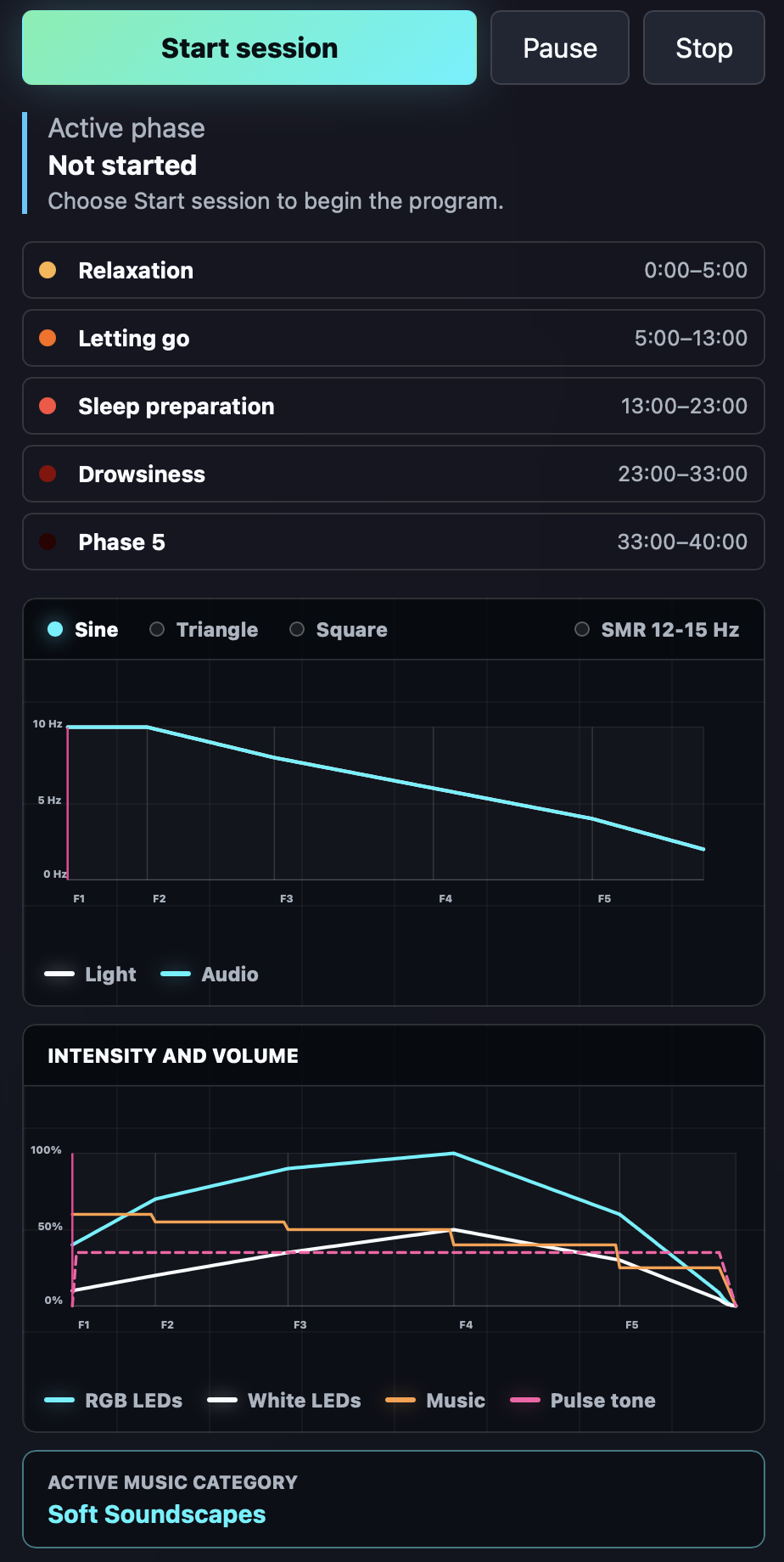
Starting and controlling a session
- Select the session or program you want to use.
- Click Start Session.
- Use Pause to temporarily interrupt playback.
- Use Stop to end the session.
The active phase is shown directly below the controls. During playback, this area displays a short description of the phase that is currently active.
Phase overview
Each session consists of one or more phases. Every phase is displayed in a separate block containing:
- the colour used for the phase, visible only in the Audio+Light edition;
- the name of the phase;
- the start and end time, showing the duration of the phase.
This lets you see the structure of the session and the duration of every phase at a glance.
Frequency graph
Below the phase overview is a graph showing how the frequencies used throughout the session develop over time.
- Blue line: the audio frequency, available in all editions.
- White line: the light-stimulation frequency, available only in Audio+Light.
- Green dotted line: the breathing rhythm when breathing coaching is enabled.
When audio and light use the same frequency, the blue and white lines overlap. In that situation, only one line will usually be visible.
Intensity graph
The second graph shows how light and sound intensity develop during the session. Depending on the edition, two or four lines are displayed:
- Blue line: RGB-light intensity, Audio+Light only.
- White line: white-LED intensity, Audio+Light only.
- Orange line: music volume.
- Pink line: pulse-tone volume.
This graph lets you follow precisely how light intensity, music and pulse tones rise or fall across the different phases.